PC
Keep the agent running on each PC and the server controls its power and status.
- Power on via WOL
- Shutdown and restart
- Set programs to close before shutdown
- TightVNC remote access
Monster Power Manager (Monster CMS) is an operations program that manages the power of networked PCs, projectors and media players from one screen. Set a schedule for each day of the week and it takes over turning everything on in the morning and off in the evening.
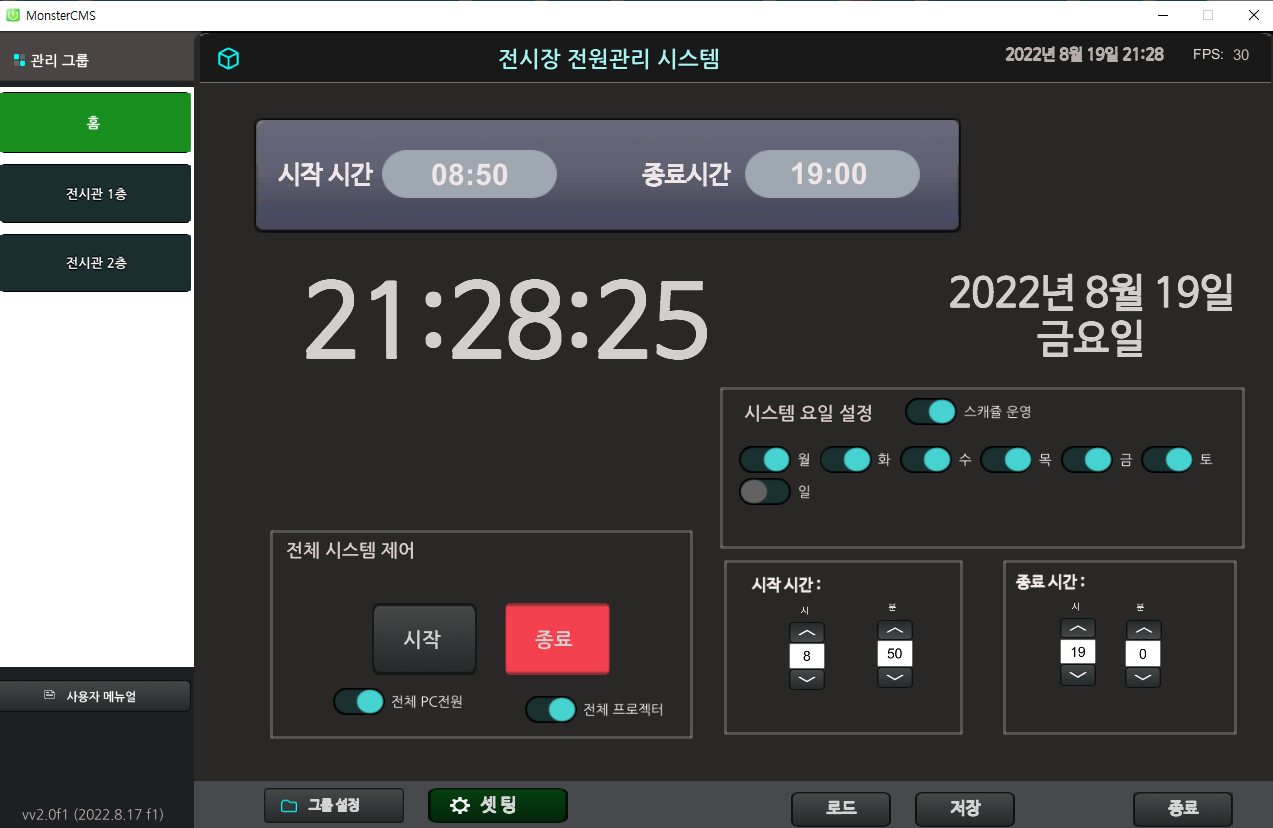
Set start and end times for each day of the week, and the registered PCs and projectors turn on and off on schedule. When needed, one button turns everything on or off directly.
Projectors must turn on before the PCs and turn off after them. Set delay times in seconds to keep the order, and manage a list of programs that must be closed before shutdown.
Connection status for each device is shown in real time. For projectors you can check power status and lamp hours, and PCs can be accessed remotely to take action.
Install the program on a single operations PC, with no separate server PC, and register the devices to manage over the network.
Keep the agent running on each PC and the server controls its power and status.
Projectors that support PJLink are registered by IP and controlled. Both Class 1 and Class 2 are supported.
A dedicated agent app is installed on Android media players.
No specialist knowledge of equipment operation is needed; just follow the screens in order. Devices can be split into up to 7 groups and turned on and off by group.
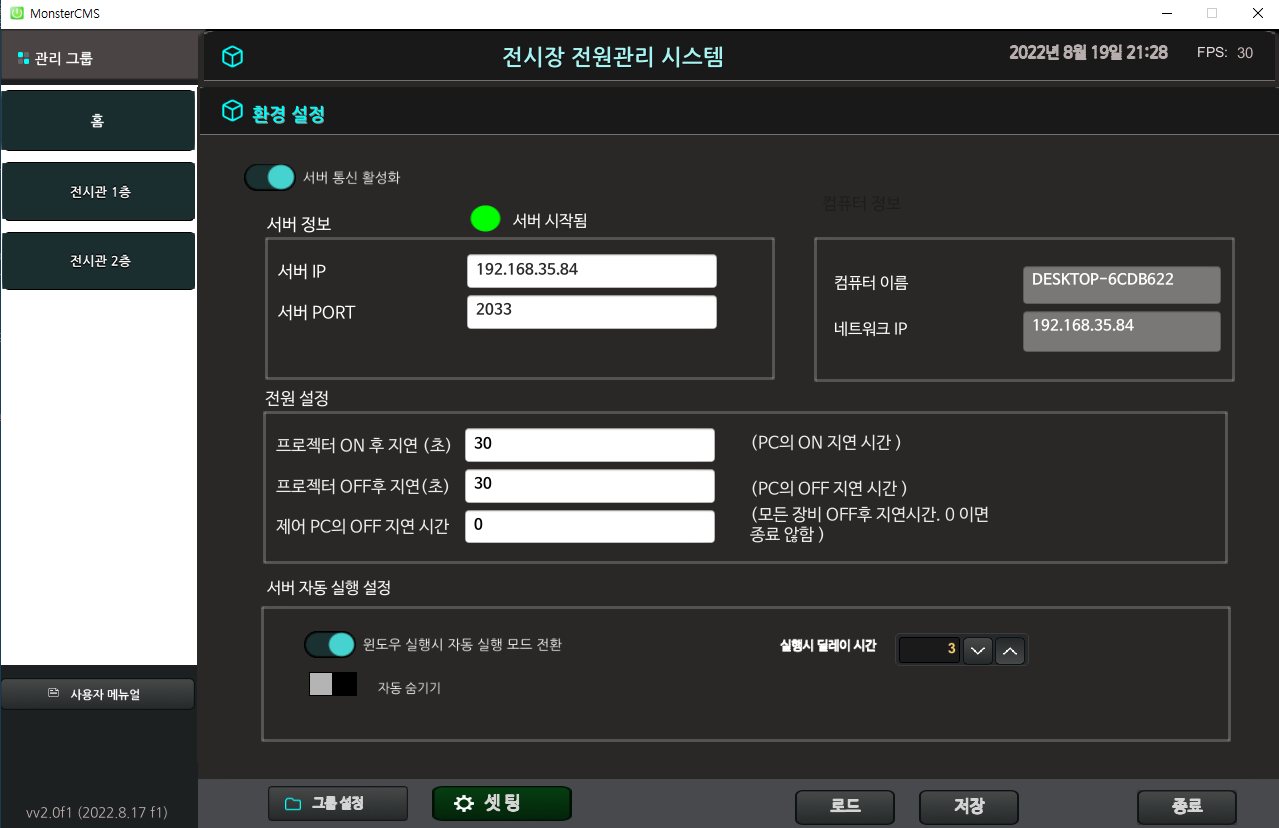
Turn on server communication and set the power-on and power-off delay times between projectors and PCs. Auto-start at Windows startup is also set here.
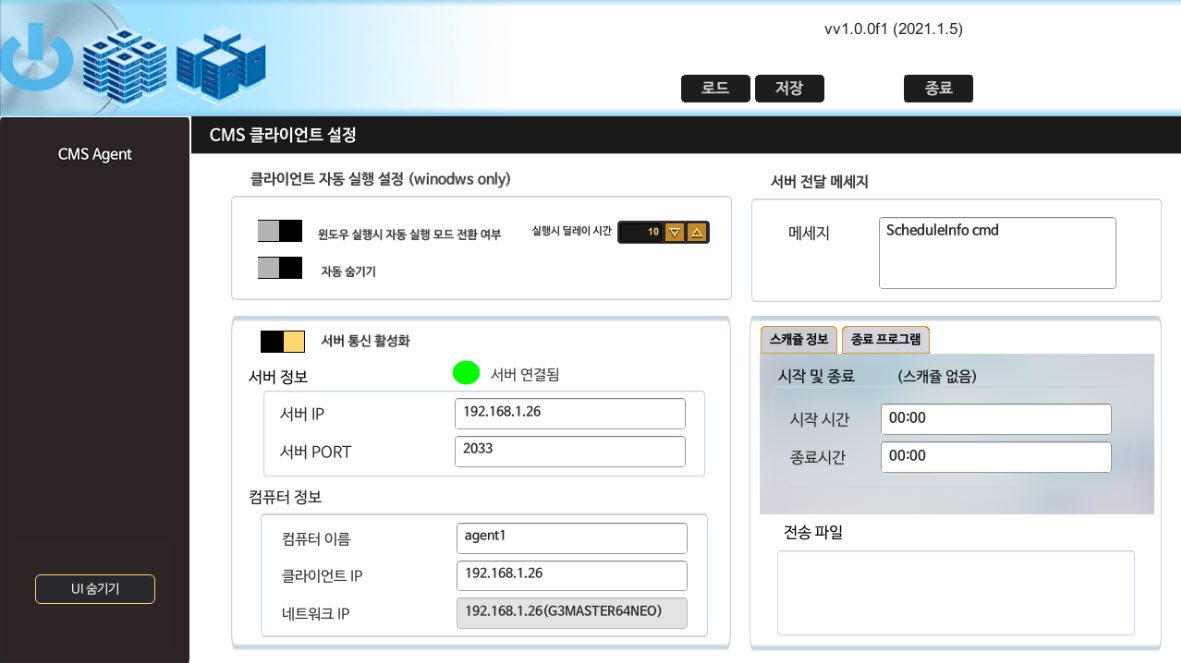
Run the agent on each PC to be managed to connect it to the server, and register projectors by IP address. The name and IP must match the values registered on the server.
Choose the days to operate and set the start and end times. Apart from the schedule, you can turn everything or a single group on and off right away.
To power on PCs over the network, WOL must be set up on the motherboard and network card; for projectors, set a static IP and turn on network standby mode. The manual includes the setup steps and reference material.
The trial version has the same features as the full version. Until a license is registered, it closes automatically 1 hour after launch.
Includes the server program together with the Windows and Android agents.
Download trialCovers installation and the 7-step configuration, WOL setup on PCs, and projector network standby mode setup.
Download manual PDFRegister your on-site PCs and projectors and check that they turn on and off.
Click the license registration button in the program to display the hardware key.
Send the hardware key to msw2005@naver.com. If you need a tax invoice (Korea), send your business registration certificate with it.
Enter the license key you received by email, click Activate, and you are done.
Selected from the manual's Q&A and the setup guide.
View Tech notesThere is no functional limit on the number of connections. We have verified that up to 100 simultaneous connections work without problems.
There is no difference in features. Without a registered license, the program closes automatically after 1 hour.
It does not matter for projectors, but powering on PCs via WOL requires a switching hub.
On some motherboards, the network card's WOL standby setting is lost when outlet power is cut. In the BIOS, turn on Wake on LAN (Power On by PCI-E) and turn off ErP·Deep Sleep. The manual appendix has a setup guide.
Check that the projector has a static IP and that network standby mode is on. Panasonic models work only after a password is entered.
We will advise on the setup and send a quote. +82-70-8650-6368 · msw2005@naver.com